Cursor Annotate lets you point at your running app and have the agent edit the code
SummaryCursor's Design Mode now centers on Annotate: in the Agents Window browser you click an element, draw on the page, edit text or CSS in place, and send those notes to the agent with a screenshot and element details. It needs Cursor 3.24.18 or later. We haven't tested it yet.
· MODEL Editors · 3 min read
Some links may be affiliate links. Disclosure
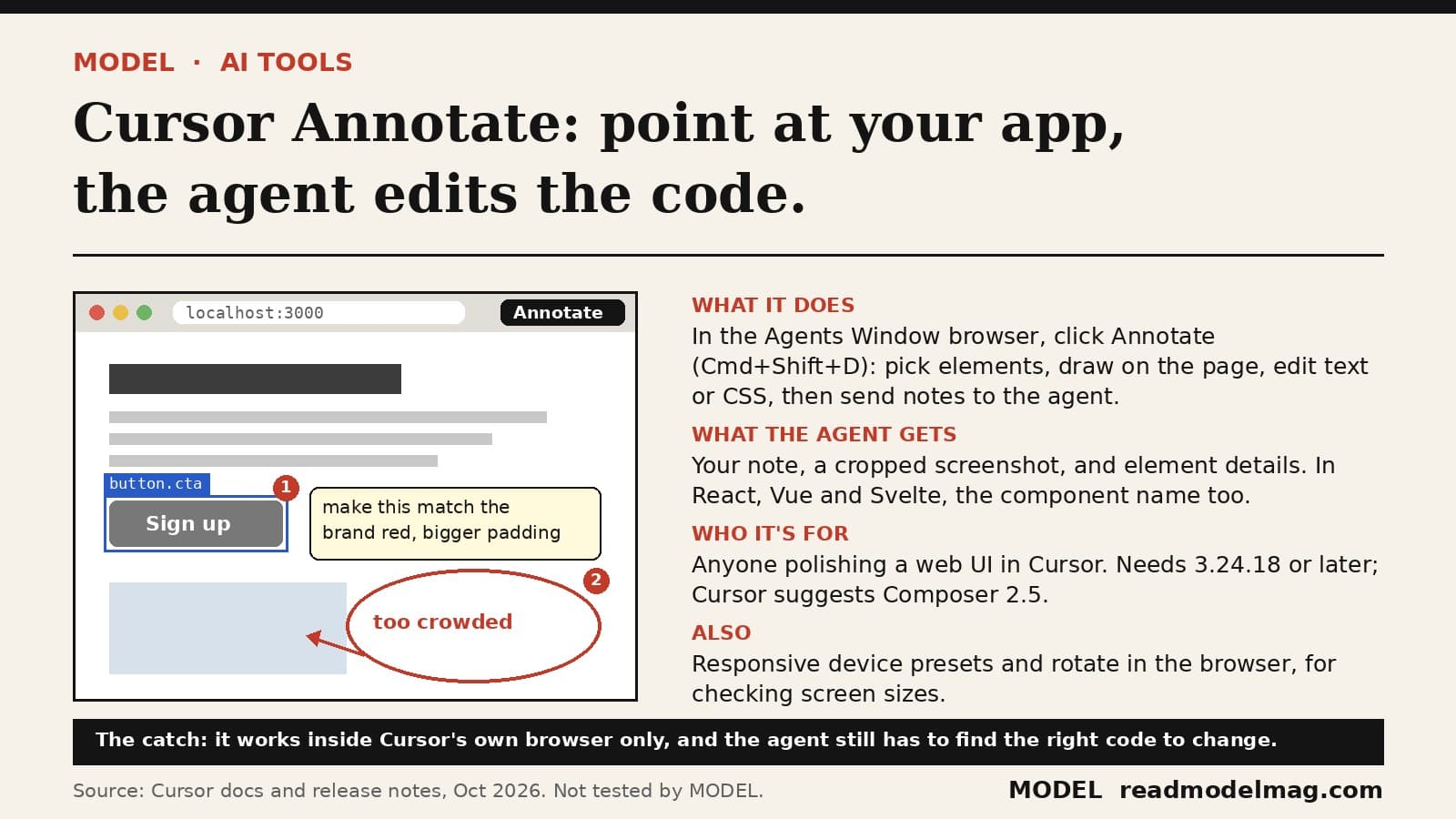
Cursor is pushing a new way to give its agents UI feedback: instead of describing a change in a sentence, you point at it. On October 27, Cursor's post on X (opens in a new tab) put it in one line: "Give agents visual prompts: edit elements, draw on the page, and review your designs at different screen sizes." The feature is called Annotate, and it lives in Design Mode inside the browser of Cursor's Agents Window.
How it works, according to Cursor's docs (opens in a new tab). Open your running app in the Agents Window browser, then click Annotate in the toolbar or press Cmd+Shift+D. From there:
- Pick an element and type what should change. Shift-click to add more elements to the same note, for things like "make this card match that one." Arrow Up and Arrow Down move the highlight to a parent or child element.
- Mark an area by dragging a box, then draw on it with pen, ellipse, rectangle or arrow tools.
- Edit text in place by double-clicking it, or open a CSS inspector on a single element and change property values directly.
- Dictate a note instead of typing it.
- Send one note at a time, or batch them. With Batch edits on, notes collect as numbered pins and one Send button ships them as a single message.
What the agent actually receives. Each note includes your text, a screenshot cropped to the element or marked area, and element details: tag, id, classes, attributes, a selector path, the first 200 characters of visible text, size and position, and six computed styles. In React, Vue and Svelte apps it also gets the component name and component stack, which is what helps it find the source file.
Screen sizes. The "different screen sizes" part comes from the browser's responsive design mode. Cursor's October 22 release notes (Agents Window 3.27) added iPhone Duo device presets and a rotate control that works on every preset, including Laptop and Desktop.
Who it's for. Front-end developers and designers who already build web UIs in Cursor and spend their time on small visual fixes: spacing, colors, copy, alignment. Cursor says the flow works best with a fast model that is good at interface work, and recommends its own Composer 2.5.
Versions and timing. Annotate needs Cursor 3.24.18 or later; earlier versions show a pen icon labeled Design Mode instead. It isn't brand-new today: Cursor's release notes list Annotate fixes on October 14 and the CSS inspector on October 20. Today's post is the launch push.
The catch. It only works in Cursor's built-in browser, on an app you are running there, so it doesn't help with a native mobile app or a page you can't load locally. The agent gets a screenshot and DOM details, not a direct link to your code, so outside React, Vue and Svelte it still has to work out which file to change. Canvas tabs keep the older pen-icon Design Mode, without batch edits or in-place text edits. And when Annotate replaced the old Design Mode in mid-October, two users in a Cursor forum thread (opens in a new tab) complained that familiar shortcuts changed and that batched notes vanished when they switched pages. A Cursor staff member replied that some shortcuts changed on purpose and that batched notes stay tied to the page URL where you wrote them: they're hidden, not deleted, until you return to that page. So you can't batch notes across several pages into one send.
Our take. Pointing beats describing for UI work, and sending component names along with the screenshot is the useful detail here. If you already do front-end work in Cursor, it's worth trying on your next round of small visual fixes. Check the diff each time, because a note on one button can still change a shared component.
What we did and didn't do: we read Cursor's Design Mode docs, its release notes, one forum thread and its October 27 post on X on October 27, 2026. We have not used Annotate yet; the claims are Cursor's. Not sponsored; no affiliate links.
Sources
FREE · EVERY WEEK
The top AI tools this week, tested.
Every week MODEL's editors pick the AI tools worth your time, try them hands-on, and tell you what's good, what's not, and who it's for. Free, in your inbox.
Free. Unsubscribe anytime. Our picks are editorial and can't be bought.
Continue
Tool Update
OpenAI's Tibo: dots are getting GPT-6 Astra, GPT-6.1 Terra, and more
OpenAI's Tibo Sottiaux said the team is expanding the frontier models that power ChatGPT dots beyond today's Astra-only setup, adding GPT-6.1 Terra for speed and personality so more people can get a dot. Your dot will pick the model. It hasn't shipped yet.
· MODEL Editors
Hot Take
Hot take: sloppy AI code is a checking problem, not a model problem
Anthropic says Claude wrote the Rust port of its Messages API, starting with no Rust developers on the team, and that the safety net was shadow traffic, not line-by-line review. The same week, Veracode found about 4 in 10 AI coding tasks still produce code with a known vulnerability. Here is what was actually said, what the viral version gets wrong, and our take.
· MODEL Editors
Tool Update
Notion's week: its agent now makes Excel, Word, PowerPoint and PDF files, and edits say which agent did them
Notion's Halloween recap bundles four updates from Oct 27 to 30: an agent that builds real office files, speaker labels for Google Meet notes, bigger automatic offline downloads, and a 'Last edited by' label that names the agent or MCP client behind a change. Here is what each one does, and what Notion hasn't said.
· MODEL Editors